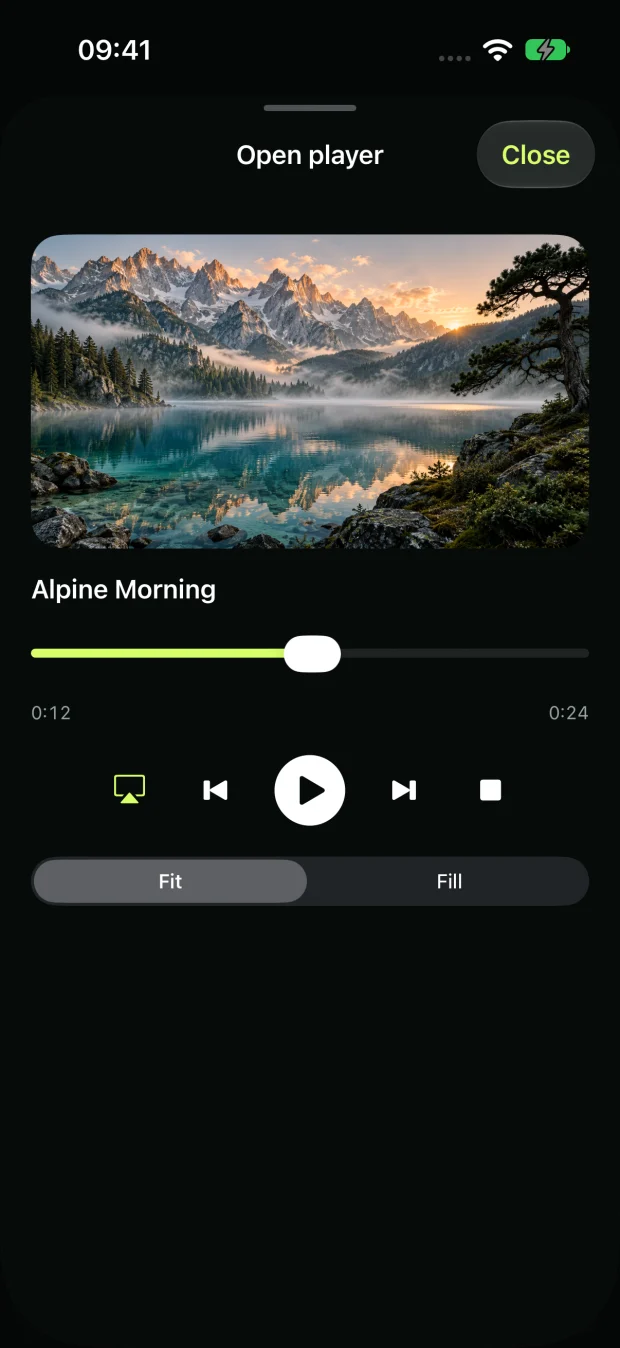
TV & AirPlay
Use a compatible AirPlay receiver. Check that your devices are discoverable and follow the on-screen connection steps.
 LeyTV
IPTV & MEDIA PLAYER
One place for your playlists, local videos, and media servers. Add your sources, find what you want, and press play.
iPhone & iPad · iOS / iPadOS 26.2+
Bring your own content. No channels or subscriptions included.
INSIDE LEYTV
Keep the tools you use most in one app. Take a look at each part of the experience.
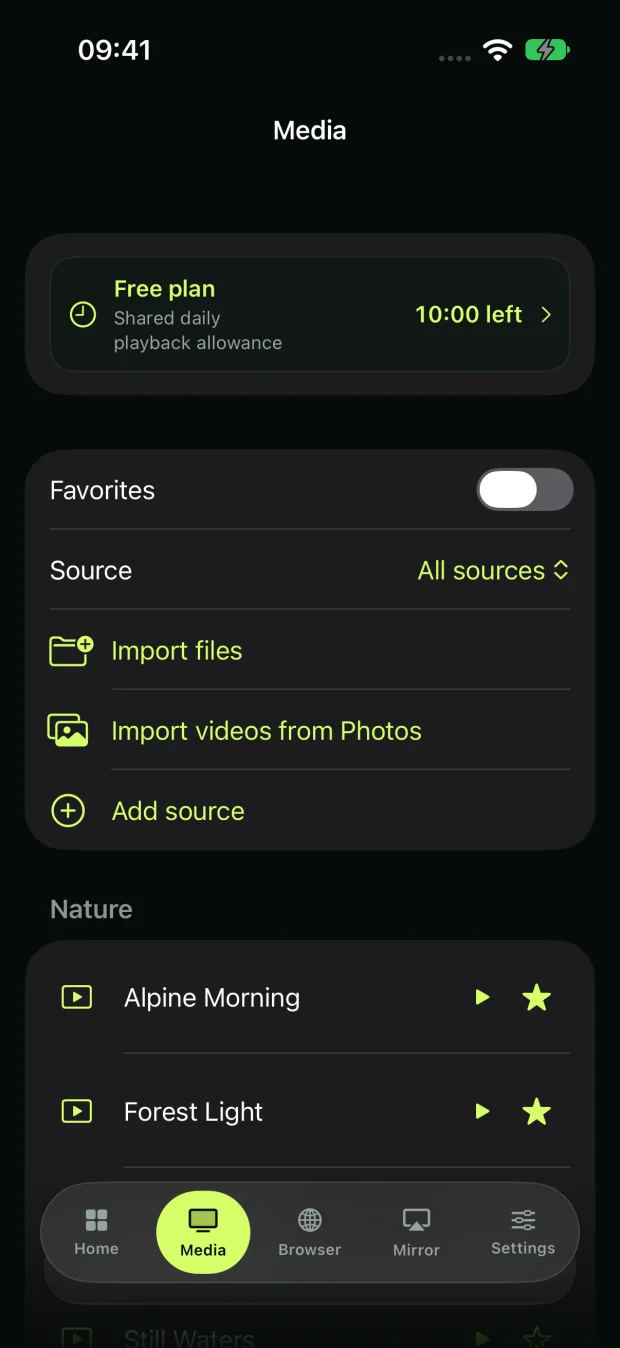
QUICK START
Open Media → Add source. Paste a playlist URL, enter server details, or import a video from Files or Photos.
Search by name, browse groups, or save a favorite. Tap a channel or video to open it.
Watch on your device or select a compatible external display using the available sharing controls.
COMPATIBLE DISPLAYS
Play on iPhone or iPad, or share with a compatible display. Your device, receiver, and source determine which options are available.
UPCOMING UPDATE
Plan a trip with stops, invite friends, and see members who choose to share their location. Each participant gets directions from their own location to the next stop.
Group trips are planned for the next update. Creating a group requires Pro; joining by invitation is free.
FREE & PRO
Try your own media
More time and control
Plans and prices vary by region and appear in the app. Broadcast quality depends on your device, source, and connection.
HELP CENTER
Find answers about media sources, sharing, Pro, and group trips.
No. LeyTV is a player. Add an M3U/M3U8 playlist, an Xtream-compatible account, a personal media server, or files you are authorized to use.
Open Media → Add source and choose M3U or Xtream. For M3U, paste the playlist URL. For Xtream, use the server address and credentials provided by your service. Save and wait for the library to load.
Yes. Choose the server type under Add source and follow its connection steps. Confirm that the server is reachable from your device and that your account has access.
Yes. In Media, choose the file or Photos import option. Format and codec support depend on the video.
Try another item from the same source, check your connection, and confirm the URL or credentials still work. Some providers restrict concurrent streams or the devices that can play them.
Sharing requires a compatible receiver, for example one that supports AirPlay. Connection methods vary by display, device, app version, and media format.
Open Mirror, tap the screen broadcast button, and select LeyTV in the iOS broadcast picker. Then choose a supported display using the controls available for your connection.
Some apps and websites block capture or external playback. DRM, format support, receiver capability, and vehicle restrictions can also limit what appears.
No. LeyTV runs on iPhone and iPad, but CarPlay connects to a compatible iPhone. Vehicle video is available only under the conditions permitted by the system and vehicle.
Free use includes 10 minutes per day shared across playback and screen broadcasting. Pro removes the daily limit. The current allowance is visible in the app.
Use Restore purchases in LeyTV with the Apple Account that made the purchase. Manage subscriptions in your Apple Account settings. Family Sharing applies to the eligible Lifetime Family plan.
Follow a shared trip plan with friends and see members who share their location on the map. Everyone sees the shared stops and destination, while each member gets directions from their own location to the next stop.
Open the group icon in the Map tab. Enter a group name, then use Stops and route to add a meeting point, stops and a destination. Invite friends with Share the invitation. To join, open the invitation link you receive. Group features require you to be signed in to iCloud and have an internet connection. Creating a new group requires LeyTV Pro; accepting an invitation and participating are free.
Only the group creator edits the trip plan. The creator sets the order of stops, notes, planned breaks and preferences for avoiding tolls or highways. Other members follow the shared plan.
If your current location is A, the first stop is B and the destination is C, the map shows A → B → C. Creating a group does not start guidance; tap Start group navigation. Once arrival at B is confirmed, guidance moves to the next stop. A planned break is separate from the brief location check used to confirm arrival.
No. You must separately tap Share my location. Turn off Share my speed too if you do not want your speed sent. Stop sharing prevents new location updates from being sent. If your last location could not be removed, use the retry option shown in the app.
With a compatible CarPlay connection, the map can show members who share their location, stops and route guidance. Open members or the next stop from the Groups menu in CarPlay. Create groups, send invitations and edit the plan on your iPhone.
The member may have stopped sharing or may have a problem with location permission, GPS or internet access. Check the freshness status on the map; the last displayed location may not be their current position. Active sharing or guidance can continue using location while the screen is locked and may increase battery use.
No. Completing your own route guidance does not by itself end the group trip or your location sharing. Use Stop sharing to stop sending your location. The group creator can use Finish the trip to end the trip and the group’s location sharing.
No matching questions. Try another word.
CREATOR PROGRAM
Do you create content or run a community with at least 10,000 followers, subscribers, or members on one platform? Show your audience how you use LeyTV and submit your published post for review.
Once we approve your post and verify eligibility, we’ll email you a LeyTV Lifetime Pro promo code.
Publish an original post or video about LeyTV on the account you’re applying with. Keep the link accessible for review and disclose the potential promo benefit in your post.
Tell us your platform, username, audience size, and contact email. Include your profile and the direct link to the LeyTV post.
We review the account and post. After approval, we send the Lifetime Pro promo code to the email you provided.
CONTACT
Send your iOS version, LeyTV version, and the steps that reproduce the issue. For connection issues, you can attach a report from the app. Remove source credentials before sending.